
A Site Pack combines the documents for a job into one PDF, in the order you choose. Use it when you need to share a RAMS pack on site, send it to a colleague or store it, without downloading each document separately and putting them together yourself.
In this article- What a Site Pack is
- How to download a Site Pack
- Which documents can be included
- Frequently asked questions
A Site Pack is a single PDF created from the documents on a job. You pick which documents to include and the order they appear in. Intuety then prepares the PDF in the background and lets you know when it is ready to download.
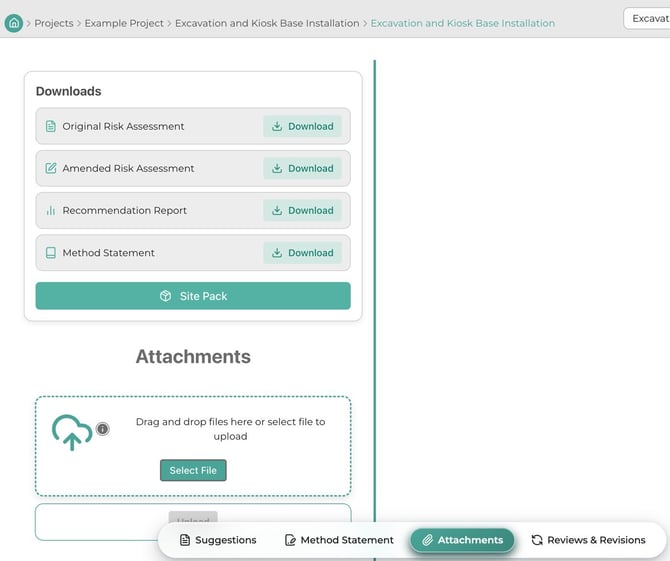
The Site Pack button is on the job's Attachments page, in the Downloads panel.
Example uses
- A site manager preparing a morning briefing puts the method statement first, followed by the risk assessment, so the team reads the sequence of work before the hazards and controls.
- A project administrator files an accepted job by including the risk assessment, method statement and review form in one PDF for the project records.
- A supervisor shares a pack with a subcontractor that includes the RAMS plus attachments such as a lift plan, permit or site photos.
Step 1: Open the job's Attachments page
Open the job, then select Attachments from the menu at the bottom of the screen. The Downloads panel on the left lists the documents available for the job. Click Site Pack underneath them.
Step 2: Choose your documents and set the order
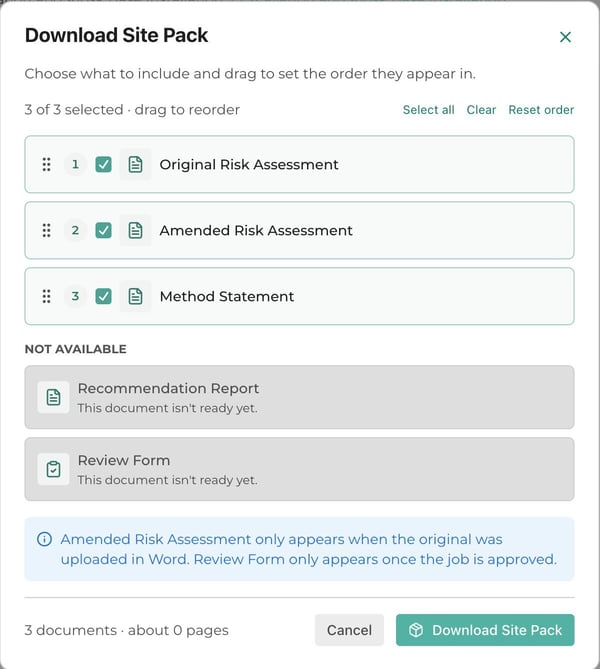
The Download Site Pack window lists every document available for the job.
- Tick the documents you want to include, or untick any you want to leave out.
- Use Select all to include everything, or Clear to untick everything.
- Drag documents up or down using the handle on the left to change the order. They will appear in the PDF in this order.
- Use Reset order to go back to the original order.
Documents that cannot be included yet are listed under Not available, with a short reason, for example "This document isn't ready yet."
Step 3: Click Download Site Pack
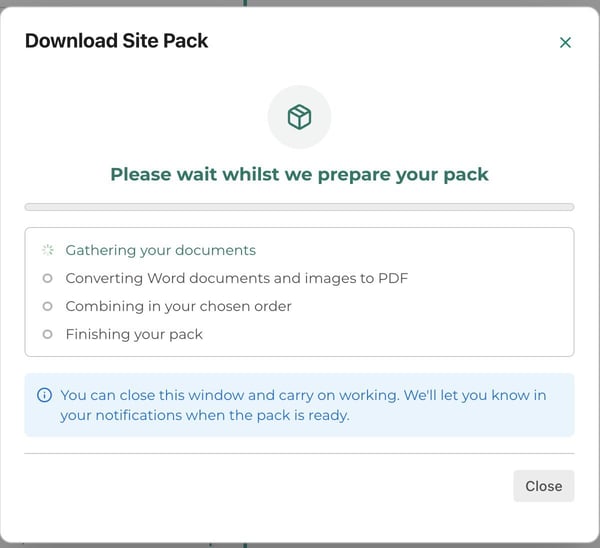
Click Download Site Pack. Intuety starts preparing your pack and shows its progress:
- Gathering your documents
- Converting Word documents and images to PDF
- Combining in your chosen order
- Finishing your pack
This can take a little while for larger packs. You do not need to wait on this screen. You can close the window and carry on working, and Intuety will let you know in your notifications when the pack is ready.
Step 4: Download your PDF
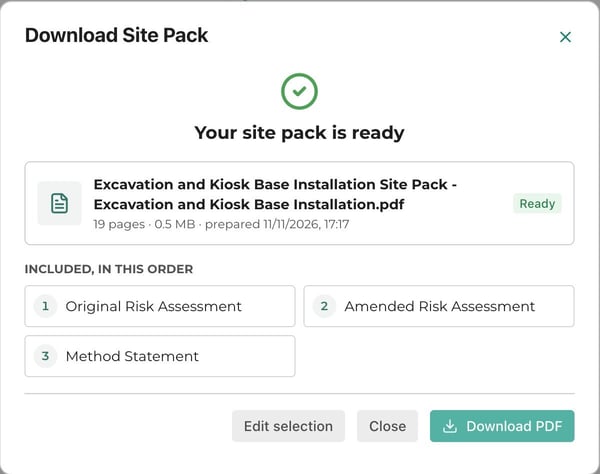
When the pack is ready, you will see Your site pack is ready, along with the file name, number of pages, file size and the documents included in order. Click Download PDF to save it.
If you want to change what is included, click Edit selection to go back to the document list.
If you closed the window
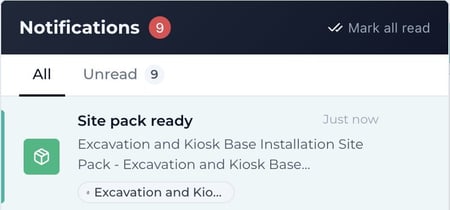
Open your notifications (the bell icon at the top of the screen). You will see a Site pack ready notification for the job. Select it to download your pack.
Only documents that are available on that job appear in the list. These can include:
- Original Risk Assessment: the risk assessment as it was uploaded.
- Amended Risk Assessment: only available when the original risk assessment was uploaded as a Word document.
- Method Statement
- Recommendation Report
- Review Form: only available once the job has been accepted.
- Attachments: any files added to the job's Attachments page such as a permit, emergency plan or a traffic management plan.
How attachments are added
- PDFs are added as they are.
- Word documents are converted to PDF and added.
- Images are placed one per page, scaled to fit, with the file name as a caption.
- File types that cannot be turned into a PDF, such as spreadsheets, are shown as unavailable and are not included.
Where is the Site Pack button?
Open the job, select Attachments from the menu at the bottom of the screen, and the Site Pack button is in the Downloads panel, underneath the list of documents.
Can I choose the order of the documents?
Yes. In the Download Site Pack window, drag the documents into the order you want. The PDF follows that order. Use Reset order to go back to the original order.
Why can't I see the Review Form in my Site Pack?
The Review Form is only available once the job has been accepted. If the job is still awaiting review, or has been returned, the Review Form will not be available yet.
Why can't I see the Amended Risk Assessment?
The Amended Risk Assessment is only created when the original risk assessment was uploaded as a Word document. If the original was uploaded as a PDF, there is no amended version to include.
Why is a document listed as "Not available"?
The document is not ready yet for that job, for example a report that has not been generated, or a file type that cannot be converted to PDF, such as a spreadsheet. It will not be included in the pack.
Do I have to wait while the pack is prepared?
No. You can close the window and keep working. You will get a Site pack ready notification when it is done, and you can download it from there.
Can I include photos or images?
Yes. Images attached to the job can be included. Each image is placed on its own page, scaled to fit, with the file name shown as a caption.
Can I include spreadsheets?
No. Spreadsheets and other file types that cannot be turned into a PDF are shown as unavailable and are left out of the pack. You can still download them separately from the job's Attachments page.
Can I change the documents after the pack is ready?
Yes. On the ready screen, click Edit selection, change your choices or order, and download the pack again.
What file format is the Site Pack?
The Site Pack is a single PDF file.