
1. Check your permissions:
You need to be a Global Admin in Microsoft. If you’re not, stop here and ask someone who is.
2. Go to the Intuety website:
Open this link in your browser: https://app.intuety.io
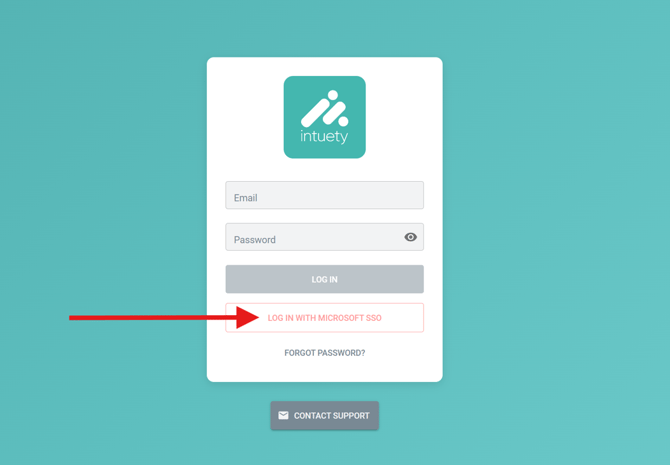
3. Click the red button:
Click on "Log in with Microsoft SSO".
4. Sign in with your Microsoft admin account:
If it asks you to log in, use your Microsoft admin account (not your normal work login, unless it’s the same).
5. Give permission for your organisation:
When it asks for permission, tick the box that says "Consent on behalf of your organisation", then click Accept.
6. Now go to Microsoft Entra (Azure):
Open a new tab and go to your Microsoft Entra admin center. (Ask IT if you don’t know how to get there.)
7. Find Enterprise Applications:
In the left-hand menu, click on Enterprise Applications.
8. Look for “Intuety” in the list: You should see Intuety listed there.
If you do, and it says SSO is enabled, then you're all set
Need more help or resources? Visit:
https://linktr.ee/intuety