
1. Head to app.intuety.io and log in either using your email address and password or by clicking 'Log in with Microsoft SSO'. If you're unsure which one to use, speak to your company admin.
2. Locate the project that you are working on and then click it. If you can't see it, speak to your Project or Company Admin.
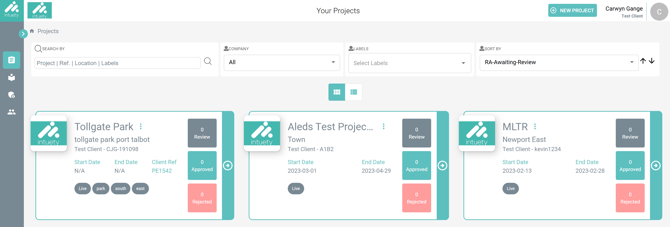
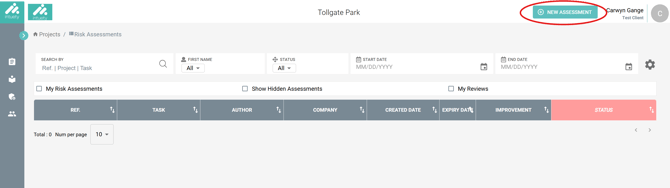
3. When in the relevant project, click the 'Create Task' button to either create or upload a set of RAMS. If you do not see this button, that means you do not have the required 'author' permissions and we suggest speaking to your internal company admin.
4. Enter the Reference and Task, and also expiry date if applicable - then hit Continue:
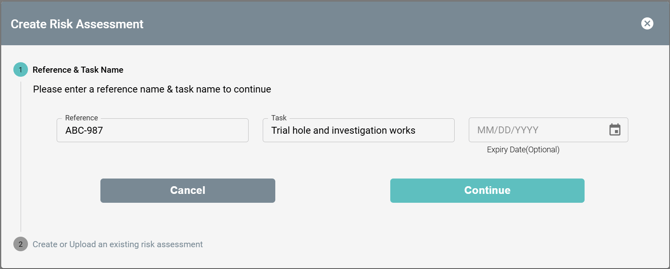
In this guide, we will focus on uploading RAMS (not creating them in the platform).
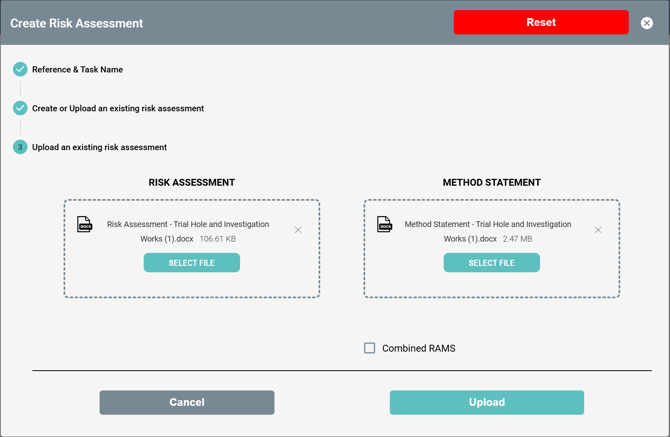
5. Attach your Risk Assessment and Method Statement to the popup box. If you have one document containing both, tick 'Combined RAMS'. When attached, hit Upload.
6. The platform will now start reading and understanding the document(s) that you have uploaded - just like a human would. Whilst this is ongoing, you will see the status 'Processing...'

Once the platform has analysed the documents, you will get an email notification letting you know that you can proceed with improving the RAMS.
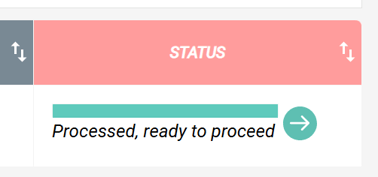
7. When ready, click on the green arrow:
8. This will now open up the updated suggestions page.
Need more help or resources? Visit:
https://linktr.ee/intuety