
Once a project has been created, Administrators and Project Administrators can update key project information from Project Settings.
Step-by-Step: How to Edit Project Details
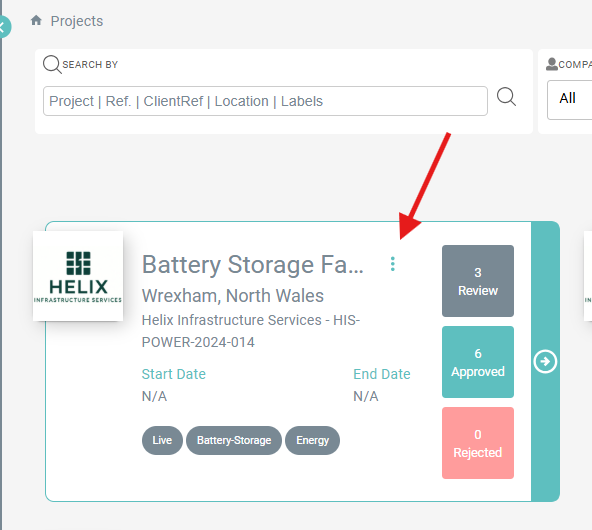
-
Go to Projects
-
Locate the project you want to update
-
Click the three dots (⋮) on the project card
-
Select Project Settings
-
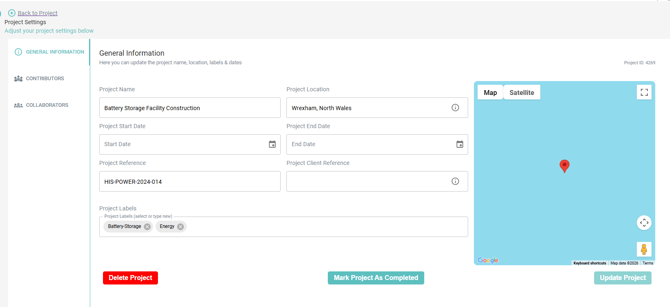
Ensure General Information is selected
-
Update the required fields
-
Click Update Project to save your changes
Alternative Way to Access Project Settings
You can also access Project Settings from within a project:
-
Open the project
-
Navigate to the Tasks view
-
Click the settings (⚙️) icon in the top-right corner
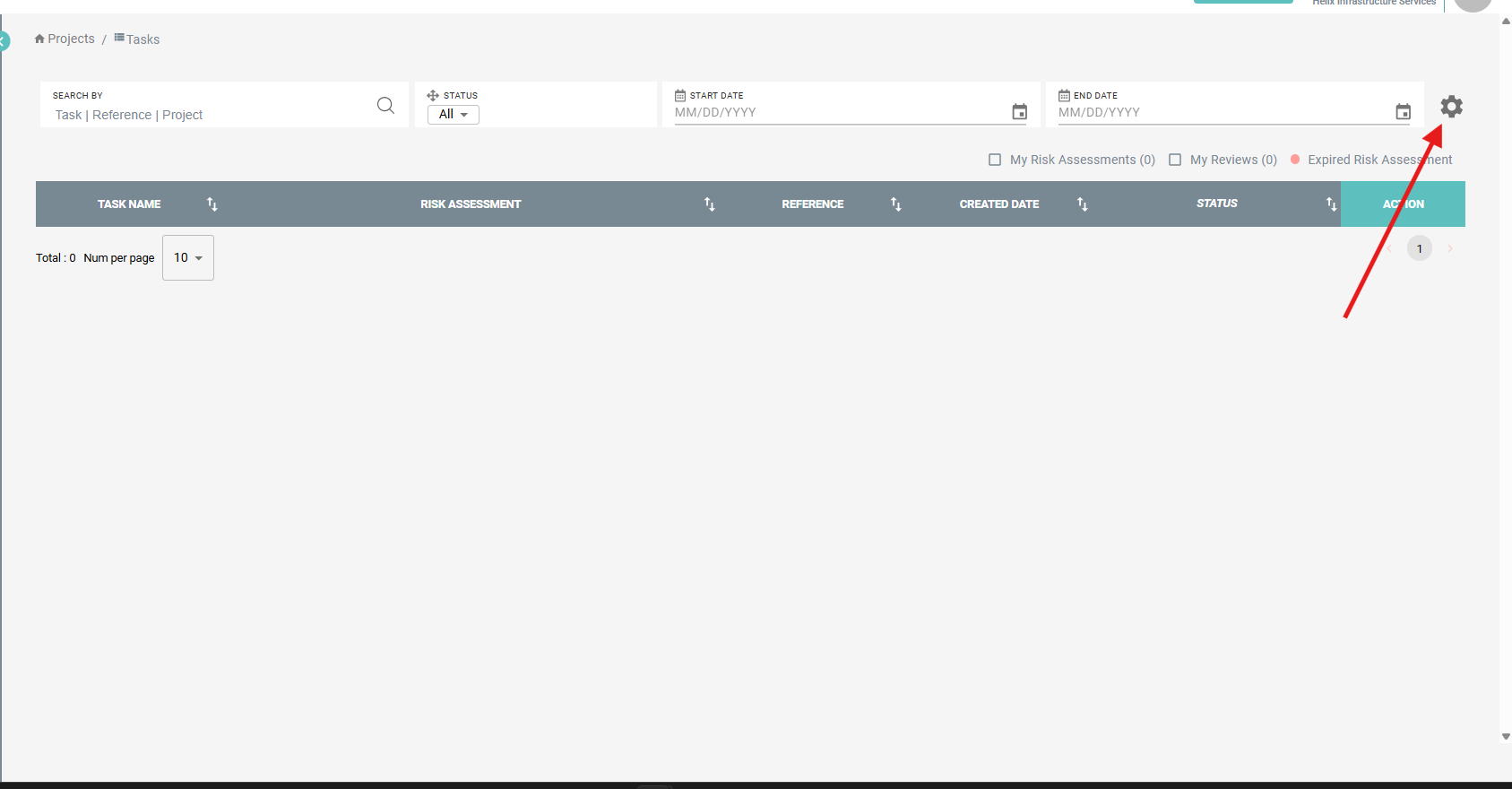
This will take you to the same Project Settings page where project details can be updated.
What Can Be Changed
From the General Information section, you can update the Project Name, Project Location, Start Date, End Date, Project Reference, Project Client Reference, and Project Labels. You can also mark the project as Completed.
These changes apply immediately and do not affect existing RAMS, reviews, approvals, or uploaded documents.
Additional Options
Project Settings also allow you to manage Contributors, Collaborators, and depending on permissions, delete the project.
Need More Help?
If you cannot edit a field shown above, please check your user permissions or contact Intuety Support.
Need more help or resources? Visit:
https://linktr.ee/intuety